Category: Technology in Education

How Teachers Can Use Google Calendar as a Class Website

Create a School Webpage For Your Classroom in Minutes!

Many educators in North America and Worldwide use their Google account for many educational and personal uses. GMAIL, Google Drive, Google+ and Google Calendar are just a few of the many Google Products that are FREE to use personally or in your classroom.

This post will focus on a quick and easy way to create a class website in minutes using Google Calendar.

Step 1 – Create a Google Account and Google Calendar

You must first create a Google Account in order to access the features of Google Calendar. However, if you already have a GMAIL account or use another product, you can use that same login. All Google Products are all connected to make using Google products in your classroom very simple and easy to integrate.

The video below will take you through the process of creating your first Google Calendar for School or Personal use:


Once your account is created, be sure you are logged in and click on the Calendar link at the top of the Google homepage. Then, click on the pull-down menu in the My Calendars section to Create a New Calendar:

How Teachers Can Use Google Calendar as a Class Website - Create a New Calendar

Step 2 – Making Your Calendar Public and Sharing the Web Link

By default, Google Calendars are set to private as many people use them for personal uses only. By clicking on the pull-down menu on your calendar in the My Calendars section, you can go to Sharing Settings and click Make This Calendar Public. The video below demonstrates this as well as how to share the link with your students:


Be sure to make the calendar PUBLIC so that your students will be able to access the calendar and view your course material and updates.

Step 3 – Creating a bitly Short Link to Share Easily

You’ll notice the Google Calendar link for sharing with others is very long and difficult to share without copying and pasting. We can use a free service from BITLY to make the link shorter and even customize the link a bit. Check this process out in the video below:


Step 4 – How to Attach Files to Your Calendar With Google Drive

Since you now have a Google Calendar account, that means you also have a Google Drive account for cloud-based file sharing! Why not attach today’s lesson handout or other important files to your Google Calendar? Learn how below:


Step 5 – Adding Website Links to Google Calendar Events

Want to share a great YouTube video explaining a key concept from your lesson? Think a Khan Academy Practice Exercise would be beneficial for students to try on their own? Add active (clickable) links to your Google Calendar by watching the following video:


Step 6 – How to Link to Public Dropbox Files With Google Calendar

Are you a Dropbox or other cloud-computing fan? Grab the public link from the cloud computing service of your choice and include the link via the method from Step 5. Watch this video to see how quick you can add a public file from your Dropbox account and include the link on your Course Google Calendar:


That’s it! Your Class is Online!

Congratulations! You now have a web-presence for your class! What a great way to organize your course material and ensure students who are absent can stay on track even while ill or away at a sporting event!

Any questions? Shoot me a comment below!

Kyle Pearce

About Kyle Pearce

Secondary Math Teacher and Intermediate Math Coach with the Greater Essex County District School Board leading a Ministry funded 1:1 iPad project called Tap Into Teen Minds. I currently teach at Tecumseh Vista Academy K-12 in the morning and focus on duties for the Middle Years Collaborative Inquiry (MYCI) Project in the afternoon.

Using Prezi to Engage Students

Using Prezi to Engage Your StudentsNot that long ago, teachers relied on chalkboards, overhead projectors and filmstrips to present material to their students. And let us not forget the enormous television/VCR combination that lived in the AV closet – only available with a reservation!

Once PowerPoint came along, teachers had access to what was then a cutting-edge method of introducing new concepts to their classes. Today, however, technology evolves at breakneck speed and even PowerPoint might be considered passé. That has left many teachers hungry for progressive and effective presentation tools.

Finding engaging ways to present classroom lessons is nothing new to educators. The most effective teachers use a combination of methods to present material and are constantly on the lookout for the latest way to inspire and motivate students. Lightning-quick changes in technology are opening up countless ways for teachers to captivate their classes on compelling and enriching platforms.

Among the more interesting presentation tools on the scene right now is Prezi – an interactive, virtual whiteboard that allows teachers to present lectures, discussions and activities to their classes. Although its use in educational settings to date has primarily been on college campuses, Prezi is making an entrance into K-12 classrooms.

So, what are some of the ways that Prezi can assist teachers in the daily challenge of engaging students in the learning process?

Use it Anywhere, Anytime

 
Prezi can be used online or offline, and on a desktop, laptop, tablet computer or smartphone. Although you’ll need Internet access in order to set up an account or incorporate a social network feed or video content, much of the creation of the presentation can be done offline. Once saved, Prezi keeps your presentations stored in the “cloud,” allowing easy 24/7 access from anywhere. You can edit and present your ideas from home, the library or the classroom. Imagine the possibilities and convenience when preparing a lesson plan for a substitute teacher or collaborating with another class.

Not Just for Teachers

 
A major upside to Prezi is that teachers and students can use the tool to brainstorm ideas together and then turn them into dazzling, interactive presentations. Teachers can use Prezi to convey complex topics efficiently and effectively, demonstrating connections and meaning. Meanwhile, Prezi is also manageable for students, its versatility giving them the option to create presentations independently or collaboratively. In addition, Prezi’s various features can accommodate the range of learning styles and personalities typically found in a single classroom.

Taking Creativity to New Heights

 
Text, photography, video, music, external links and more – all can be incorporated into the common storyline thread of a Prezi presentation to produce a reaction of “Wow!” With its 3-D, pan-and-zoom canvas, Prezi allows teachers to focus on individual details and facts, enlivening presentations with simple touch-screen navigation.

Growing up in the so-called “digital age,” today’s students expect to be dazzled by technology and all the bells and whistles that have largely rendered chalkboards and overhead projectors as little more than museum pieces.

For K-12 educators who are passionate about their subject – and about fostering that same passion in their students – the adaptability and functionality that Prezi offers can be strong allies in creating engaging classroom content.

About Diane Pierre-Louis

This guest post was provided by Diane Pierre-Louis. Diane writes for U.S. News University Directory and covers topics related to higher education and Masters of Education programs.

Are Educators Making the Most of Apple Technology?

Are Educators Making the Most Out of Apple Technology?iPads have had an ever-increasing presence in the classroom in recent years. Universities have given them out as part of a student’s standard toolset. Young children are asked to create and learn arithmetic on screens the size of picture books. Yet despite the fact that the iPad and even the iMac are getting a good workout, the devices that Apple sells to students which they may own themselves anyway – the iPhone and iPod series – aren’t being put to the maximum possible use.

New Technology Tools or is Familiar Better?

Utilise a new tool in the classroom and many students will adapt. But it’s arguable that you can make lessons far more accessible if they are presented to them on a platform they’re already familiar with. Encouraging them to go mobile with iTunes U, for example, is a good way of getting them out of the classroom and into the world while ensuring they’re not missing out on invaluable opportunities to be taught.

Benefits of Using Apple Technology in the Classroom

Small apps like iMessage can be useful for contacting students en masse, or can be used by students to get in touch with their teachers. Shared calendars can show student deadlines, field trips, and windows in which a student may visit their teacher about an ongoing piece of work or other matters. Ensuring that the faculty is making use not only of powerful technology, but technology already in use by the students is paramount to connecting with them. This will help make sure their learning experience to feel like it syncs with their lifestyle, rather than one that takes them back ten years.

iPod and iPhone Can Also Be Useful

The common iPhone or iPod Touch can be transformed into a creative platform as well. Encouraging a class to use accessible app-building software like Stencyl will result in app-building class assignments centred around the project they are working on – apps that can then be distributed on iTunes to help other students, and to give those involved something to be proud of that they can showcase quickly and easily to friends, family and other students.

Make Real World Problems With the Device in Your Pocket

As you can already see, educators are actively providing creative examples of how to utilise the iPhone in the classroom. Shooting and editing footage of a class, to then upload and discuss later isn’t something classrooms were capable of at any reasonable speed or price until recently, but now it’s as simple as taking a phone or mp3 player out of one’s pocket and snapping away.

Any Technology Can Be Useful in School

It’s about reaching out and making use of the technology available, and while not every student may own an iPhone specifically, they will most likely own smartphones and can access the internet and various apps that will allow them to make better use of their time in the classroom. Even turning a cheap Android phone into a notebook or a dictaphone has its uses, and enables teachers to show that they are embracing the technology appearing in the world’s pockets, rather than rejecting it in favour of a pen and pad forever.

About David Thompson

David Thompson loves writing about new technology, brand design, mobile handsets and follows companies like Samsung and Motorola.

How to Setup Apple TV to Mirror iPad Over AirPlay

Apple TV Tutorial Guide to Show iPad Screen on Your TV

How is Apple TV and iPad Being Used in the Classroom?

In the Greater Essex County District School Board (GECDSB), our Middle Years Collaborative Inquiry teams have been given an Apple iPad, Apple TV and an HD-compatible projector to use for teaching mathematics as well as other subjects throughout the school day. The intent is to allow the educator to use technology as a means to increase engagement in mathematics and assist in delivering curriculum in an effective manner. By using Apple TV to mirror iPad over the AirPlay feature available on both devices, teachers can use the iPad as a presentation tool and teach from different parts of the room.

How to Setup Apple TV to Mirror iPad Over AirPlay

How to Setup Apple TV to Mirror iPad
Like all products released by the brand, Apple TV is very simple to setup and does not require any special actions to turn the unit “on” or “off.” However, there are a couple small details that must be taken care of when you setup your Apple TV to mirror your iPad for the first time.

What’s in the Apple TV Box

Your Apple TV is available in the US for $99 or in Canada for $109. In the box there should be only four items:

  1. Apple TV Unit
  2. Remote
  3. Power Cable
  4. User Manual

Accessories Required: HDMI-Cable

Configure Apple TV to Display iPad Screen
It should be noted that you will be required to purchase an HDMI-Cable in order to connect the Apple TV to your TV or HD-compatible projector.

If you intend to use Apple TV with a standard definition projector, otherwise known as a VGA-projector, you will need to purchase a VGA to HDMI converter.

Connecting Apple TV to Your TV or Projector

The power cable and HDMI cable are the only two cords that will be required for your Apple TV to be connected to your television or LCD projector and they do not have to be connected in any particular order.

Be sure to plug your Apple TV into a power source using the power cable and connect your HDMI cord to one of the HDMI inputs on your TV or projector.
How to Setup Apple TV to Mirror iPad
Note which HDMI input you plug the Apple TV into and use the Source Select button on your TV to use the appropriate input source.

Use Your Remote to Setup Apple TV

There are a few settings that you must enable in the Settings menu of your Apple TV. Here are the steps:

  1. Select the Settings icon using your Apple TV remote on the television screen.
  2. Select the General option out of the Settings menu.
  3. How to Setup Apple TV to Mirror iPad

  4. Ensure that your Apple TV is on the correct network. If you are using Apple TV at a GECDSB school, you should be on the curriculum network TVXWHY.
  5. How to Setup Apple TV to Mirror iPad

  6. Click on the Settings icon on your iPad to ensure that the iPad is also on the same network.
  7. Ensure iPad WiFi Network is the Same as Apple TV

  8. Back to your General menu of your Apple TV, you can select Name to manually configure the name of your Apple TV to eliminate confusion if there is more than one Apple TV on your school WiFi network.
  9. Configure Apple TV to Display iPad Screen

  10. Finally, moving back to the Settings menu of your Apple TV, you should select the AirPlay option to ensure that it is toggled in the “ON” position. The AirPlay feature is typically set to “OFF” by default when you use Apple TV for the first time.
  11. How to Setup Apple TV to Mirror iPad

Use Apple TV to Mirror iPad Over AirPlay

Now that you have successfully setup Apple TV for the first time, you can now mirror your iPad to your TV or projector. To mirror your iPad screen through Apple TV, follow these steps:

  1. Push four-fingers up on your iPad screen or double-click on the home button.
  2. Slide the list of open apps at the bottom of the iPad screen to the right.
  3. Configure Apple TV to Display iPad Screen

  4. Click on the Apple AirPlay button. This is the button with the rectangle and triangle on it.
  5. Select your Apple TV device out of the list and turn Mirroring ON.
  6. Configure Apple TV to Display iPad Screen

 
If you have any trouble during the setup process, please leave us a comment below and I’ll do my best to help you troubleshoot!

Configure Apple TV to Display iPad Screen

Kyle Pearce

About Kyle Pearce

Secondary Math Teacher and Intermediate Math Coach with the Greater Essex County District School Board leading a Ministry funded 1:1 iPad project called Tap Into Teen Minds. I currently teach at Tecumseh Vista Academy K-12 in the morning and focus on duties for the Middle Years Collaborative Inquiry (MYCI) Project in the afternoon.

Explain Everything iPad Video Apps for the Classroom

Explain Everything Screencast App Review for iPad

What Is Explain Everything iPad App?

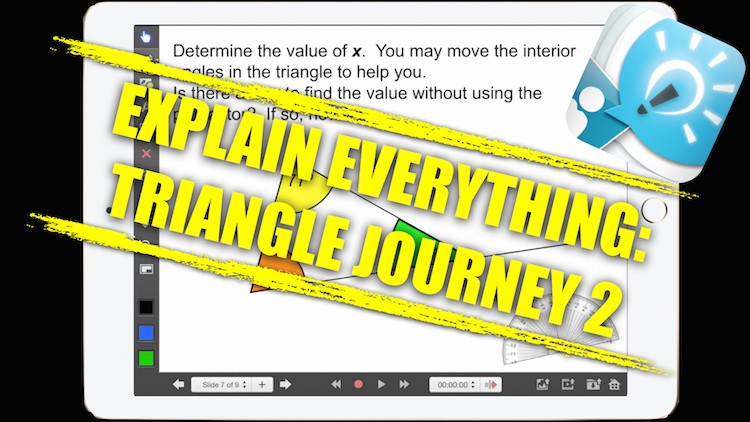
Explain Everything iPad Video Apps for the ClassroomExplain Everything is an iPad video app that allows you to create screencast videos on your iPad. Although it can be a useful app in many fields, I find it especially useful in the classroom. The app is setup in a manner similar to a presentation application like PowerPoint or Keynote, since your content is organized in slides. The benefit being that you can record each slide individually, instead of creating a video in one take like many of the other iPad video apps currently available.

US iTunes, App Store, iBookstore, and Mac App Store

Overall Impression

As you can probably tell from the video, I use the Explain Everything iPad App in my classroom on a regular basis. The app is very easy to use with a user-friendly interface, giving teachers the ability to introduce the app to students without requiring an intensive training session. Giving the user the ability to save videos as a finished product (movie) or a work in progress (project) to the iPad Camera Roll, Email, YouTube, Dropbox as well as other cloud based storage options is a huge positive.

Explain Everything iPad Video Apps for the Classroom

Why Use Explain Everything in Your Classroom?

I use Explain Everything whenever possible as a creative way for students to not only problem solve in math, but as a way for them to be able to communicate their thinking in writing as well as visually and verbally. The Explain Everything iPad App forces the student to understand the problem more deeply than memorizing a procedure since they must explain what they did in each step of the solution.

US iTunes, App Store, iBookstore, and Mac App Store

Explain Everything: Packed With Features

Some of the features in the Explain Everything iPad Video App worth noting are:

  • Add Slide Tool – ability to organize your video in slides and record in segments.
  • Slide Sorter – allows you to re-arrange and duplicate slides.
  • Pen and Shape Tools – customize pen and shape colours, borders and transparency.
  • Delete Tool – erase objects from the slide quickly and easily.
  • Pointer Tool – select from 9 different pointers for use during your video.
  • Import Tool – import photos and documents from Camera Roll, iPad Camera, Dropbox and many other sources.
  • Layering Tool – layer the different objects on the screen quickly and easily.
  • And much more!


US iTunes, App Store, iBookstore, and Mac App Store

What Is Your Favourite iPad Video App?

If you have used Explain Everything in your classroom or have another iPad screencast video app that you think we should check out, please let us know in the comments below!

Kyle Pearce

About Kyle Pearce

Secondary Math Teacher and Intermediate Math Coach with the Greater Essex County District School Board leading a Ministry funded 1:1 iPad project called Tap Into Teen Minds. I currently teach at Tecumseh Vista Academy K-12 in the morning and focus on duties for the Middle Years Collaborative Inquiry (MYCI) Project in the afternoon.