Category: Apps for Education

Explain Everything iPad Video Apps for the Classroom

Explain Everything Screencast App Review for iPad

What Is Explain Everything iPad App?

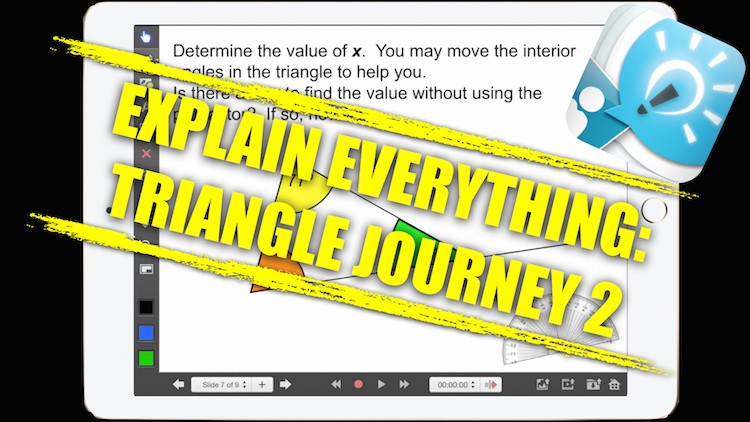
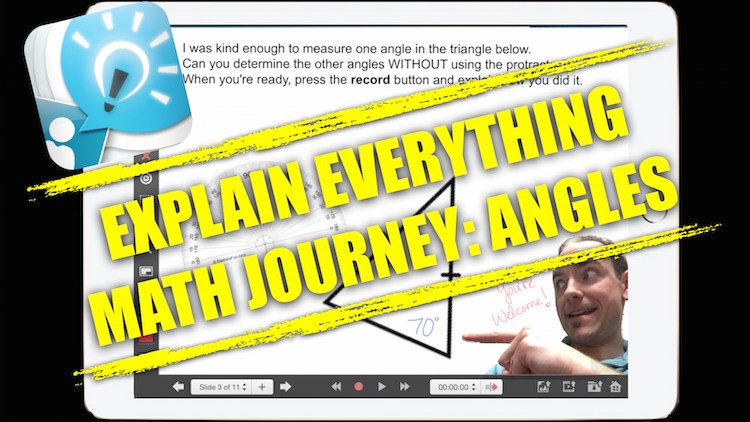
Explain Everything iPad Video Apps for the ClassroomExplain Everything is an iPad video app that allows you to create screencast videos on your iPad. Although it can be a useful app in many fields, I find it especially useful in the classroom. The app is setup in a manner similar to a presentation application like PowerPoint or Keynote, since your content is organized in slides. The benefit being that you can record each slide individually, instead of creating a video in one take like many of the other iPad video apps currently available.

US iTunes, App Store, iBookstore, and Mac App Store

Overall Impression

As you can probably tell from the video, I use the Explain Everything iPad App in my classroom on a regular basis. The app is very easy to use with a user-friendly interface, giving teachers the ability to introduce the app to students without requiring an intensive training session. Giving the user the ability to save videos as a finished product (movie) or a work in progress (project) to the iPad Camera Roll, Email, YouTube, Dropbox as well as other cloud based storage options is a huge positive.

Explain Everything iPad Video Apps for the Classroom

Why Use Explain Everything in Your Classroom?

I use Explain Everything whenever possible as a creative way for students to not only problem solve in math, but as a way for them to be able to communicate their thinking in writing as well as visually and verbally. The Explain Everything iPad App forces the student to understand the problem more deeply than memorizing a procedure since they must explain what they did in each step of the solution.

US iTunes, App Store, iBookstore, and Mac App Store

Explain Everything: Packed With Features

Some of the features in the Explain Everything iPad Video App worth noting are:

  • Add Slide Tool – ability to organize your video in slides and record in segments.
  • Slide Sorter – allows you to re-arrange and duplicate slides.
  • Pen and Shape Tools – customize pen and shape colours, borders and transparency.
  • Delete Tool – erase objects from the slide quickly and easily.
  • Pointer Tool – select from 9 different pointers for use during your video.
  • Import Tool – import photos and documents from Camera Roll, iPad Camera, Dropbox and many other sources.
  • Layering Tool – layer the different objects on the screen quickly and easily.
  • And much more!


US iTunes, App Store, iBookstore, and Mac App Store

What Is Your Favourite iPad Video App?

If you have used Explain Everything in your classroom or have another iPad screencast video app that you think we should check out, please let us know in the comments below!

Kyle Pearce

About Kyle Pearce

Secondary Math Teacher and Intermediate Math Coach with the Greater Essex County District School Board leading a Ministry funded 1:1 iPad project called Tap Into Teen Minds. I currently teach at Tecumseh Vista Academy K-12 in the morning and focus on duties for the Middle Years Collaborative Inquiry (MYCI) Project in the afternoon.

GoodNotes PDF Annotation App Review | Write on iPad

Best App to Annotate PDFs on Your Classroom iPad

GoodNotes - Notes & PDF - Time Base Technology Limited


Why GoodNotes PDF Annotation App?

GoodNotes PDF Annotation App for iPad | Write on iPadGoodNotes PDF Annotation App for iPad is one of the easiest PDF Annotators I have personally used on the iPad. After using neu.Annotate+ in my classroom for over a year and downloading other PDF Annotation apps such as PDFpen, pdf-notes, iAnnotate PDF, Notability, EvoNotes, GoodReader, DocAS and countless others, I have found GoodNotes to be one of the easiest to use, providing some of the most essential features in a smooth and stable fashion that many of the other apps do not have.
 
GoodNotes PDF Annotation App for iPad | Write on Your iPad

GoodNotes - Notes & PDF - Time Base Technology Limited


Use GoodNotes and Apple TV to Teach From Anywhere in Your Classroom

The GoodNotes “Zoom Box” allows teachers to write in a large box at the bottom of the iPad screen, while having the PDF document you are annotating zoomed out. Not only is this a great feature to make things easier when you are annotating your own personal PDF documents, but it is even better when teaching from your iPad over Apple TV in your classroom.

This feature allows the teacher to write in the large zoom-box, while maintaining the PDF document at page-wide zoom. Over Apple TV, students can see the entire PDF document without seeing the zoom-box the teacher is using to make writing on the iPad easier.
 
Use GoodNotes PDF Annotation App to Teach With Apple TV

GoodNotes - Notes & PDF - Time Base Technology Limited


Why Is It Better Than neu.Annotate+?

While neu.Annotate+ has similar features as GoodNotes, it has always been a bit “clunky” when it came to annotating a multi-page PDF document. Zooming-in and -out often resulted in a one second delay and moving around a page on the PDF document often caused the app to bring you to the next page.

The Rollerball and Fountain pen options in GoodNotes is also another huge win over neu.Annotate+. Both my students and I find that the pen in neu.Annotate+ feels less natural when writing. It seems like the neu.Annotate+ pen tool has a lower resolution tolerance and wants to guess what pixels to fill leaving the writing to look choppy and messy.

I did like the option to have multiple pens pre-set in the neu.Annotate+ toolbar, but found that the need to go to the properties tab to make changes was inconvenient on the fly. The writing zoom-box on GoodNotes is also much easier to navigate and utilize than neu.Annotate+.

These are all improvements that neu.Annotate+ can make in order to win me and my students back and I encourage them to do so.
 
GoodNotes PDF Annotator Fountain Pen Offers Smooth Writing on iPad


Overview of GoodNotes PDF Annotator Features:

  • Notebook templates
  • Notebook folders
  • Page sorter
  • Bookmarks
  • Table of contents
  • Action history
  • Undo / Redo
  • Customizable fountain or rollerball pens
  • Customizable highlighters
  • Free select tool
  • Insert text boxes
  • Import images from camera roll, camera, & cloud (Dropbox, etc.)
  • Shape recognition tool
  • Export to Dropbox, iTunes, External Apps, box or SkyDrive

 
GoodNotes PDF Annotation App Export PDFs to Dropbox or Apps

GoodNotes - Notes & PDF - Time Base Technology Limited


Get GoodNotes PDF Annotation App from AppStore


Have you ever used GoodNotes (Paid or Free)?

What did you think? Looking forward to hearing your comments below!


Kyle Pearce

About Kyle Pearce

Secondary Math Teacher and Intermediate Math Coach with the Greater Essex County District School Board leading a Ministry funded 1:1 iPad project called Tap Into Teen Minds. I currently teach at Tecumseh Vista Academy K-12 in the morning and focus on duties for the Middle Years Collaborative Inquiry (MYCI) Project in the afternoon.

The Best Math iPad App – Solve Equations With Dragon Box

Game Based Math Learning on iPad for Solving Equations

The Best Math iPad App | Solve Equations With Dragon Box

Dragon Box is an interactive PC, Mac OS, iPad iOS, and Android app which quickly teaches the player the concept of opposite operations and other rules required to solve complex math equations. Best of all, the player has no idea that the purpose of the app is to teach you math concepts!

DragonBox+ - WeWantToKnow AS

What starts out as a game which requires the player to isolate the box on one of the two “sides,” quickly progresses into students solving for ‘x’ on two sides of an equation. By the time the player realizes that they are doing math, they are in too deep and will be eager to solve the next level.

The Best Math iPad App – Solve Equations With Dragon Box YouTube Review


How to use Dragon Box and teach your child to solve equations?

The folks from Dragon Box give some advice for parents who want to help their children learn how to solve equations quickly and enjoyably on their website.

Out of the page of great advice, some of the most important that jumped out at me were:

  • Use DragonBox+, because it contains 100 supplementary equations that are important to get enough practice to be able to solve equations mechanically.
  • Let the student play the full game, that means solve the 200 equations, at their own pace. It can require different sessions of 20 minutes. You can gently help them if necessary but the best is to let them play the game themselves.
  • Never try to explain to the player that she divides or add numbers! you would spoil the game!
  • Make sure they get the point of the game, that means isolate the box on one side.

DragonBox+ - WeWantToKnow AS

It is important to keep in mind that this game will not completely replace the usual solving equations lesson you would teach your students, but it is a great digital manipulative which gives the students a real world connection when introducing opposite operations and isolating variables in equations.

Warning: Mathematics is a game. Don’t spoil it!

On the We Want to Know website, the creators of Dragon Box, they have a great quote under their recommendations of how to utilize the app to its fullest:

Warning: Mathematics is a game. Don’t spoil it!

It’s a great quote which all mathematics educators, including myself, need to really think about on a regular basis. Kids hate math and we need to find a way to make it more enjoyable to promote continuing mathematics education throughout secondary and post-secondary schooling. This game gives me hope that we are slowly moving in the right direction.

Dragon Box Math App Screenshots & Tutorial Guide

Once in the game, you’ll be asked to select or create a DragonBox Avatar Character. While you could have all students use the same character, I’d advise individual students creating their own avatar since each chapter and level of the game must be unlocked by completing the pre-requisite level.

The Best Math iPad App | Solve Equations With Dragon Box

DragonBox+ Offers 5 Chapters With 20 Levels Each + Unlock Bonus Practice Equations!

The DragonBox+ App does a great job scaffolding the basics of solving equations throughout 5 chapters, each having 20 questions each. After the player completes all 5 chapters, which equates to 100 equations, the BONUS section is unlocked which offers another 100 equations for practice. It took my wife about 45 minutes to complete four chapters with ease or 80 equations. Imagine trying to get a student to complete 80 equations in one class?

The Best Math iPad App | Solve Equations With Dragon Box

DragonBox+ Uses a Gradual Release of Responsibility Approach

All instructions given throughout the game are quick, visually demonstrated, and easy to implement for the player without much thinking.

DragonBox+ The Best iPad Math App for Solving Equations

DragonBox+ Creatively Uses Symbols and Creativity to Represent Numbers & Operators

For example, in the first level, players are instructed to “Tap Here” on a card with a green swirly tornado-like cartoon on it. Once you tap on this type of card, it disappears. Mathematics teachers will quickly realize that this particular card represents the number zero.

DragonBox+ iPad Math App Solving Equations

Immediate Descriptive Feedback for Player After Each Equation

Another reason the Dragon Box App is so great is it provides descriptive feedback to the player after beating each level (aka solving each equation). The three keys the game looks for after finishing each level are:

  • The box is alone! (aka variable isolated)
  • Right number of moves (aka no unnecessary operations used)
  • Right number of cards (aka simplified as completely as possible)

What a great way to have students learn the three keys to solving any equation in everyday language.

Descriptive Feedback Solving Equations Best Math App Dragon Box

Day & Night Cards = Positive & Negative Terms

Thus far, DragonBox+ has replaced the variable with a box, the constant zero with a green swirly tornado, and now positive and negatives are replaced with night and day.

Two words: Real World

DragonBox+ Best Math App | Day & Night Cards for Positive Negative Terms

Dragon Box Equation Solving Complexity Continues to Increase

In time, the game provides players with the opportunity to add cards (terms) to both sides, teaches the player a rule which allows you to drag two identical cards on-top of each other to make them “disappear” (i.e.: dividing two identical terms), and so on… Check out a few more screen shots to see how the complexity increases over time…

DragonBox+ App for PC Mac iOS iPad Android Windows Math

DragonBox+ Best Math App for iOS iPad Windows Mac OS Android

iPad DragonBox+ Math App Easy Way to Solve Equations

Share Your Experience with DragonBox+ Below!

Looking forward to hearing about your experiences with the app. What age group you used it with, the student reaction, your overall impression, and any other general comments would be great!

Kyle Pearce

About Kyle Pearce

Secondary Math Teacher and Intermediate Math Coach with the Greater Essex County District School Board leading a Ministry funded 1:1 iPad project called Tap Into Teen Minds. I currently teach at Tecumseh Vista Academy K-12 in the morning and focus on duties for the Middle Years Collaborative Inquiry (MYCI) Project in the afternoon.

Reflection App: Use AirPlay to Mirror iPad Without Apple TV

AirPlay Mirroring iPad on Computer Eliminates Need for Apple TV

 
How to Use Apple AirPlay to Mirror iPad With Reflection App
 
Just this past Friday, I spent the majority of the day at the Greater Essex County District School Board Office working with my superiors in an attempt to make a technology purchase order for the mathematics Middle Years Collaborative Inquiry (MYCI) project. The goal of the purchase is to provide teachers involved in the Middle Years Collaborative Inquiry with an iPad, LCD Projector and Apple TV unit to offer an opportunity to integrate technology in their classroom for a significantly lower price tag than an interactive whiteboard.
 
While I still believe this is a great digital classroom setup, I had a chance to experiment with the Reflection App by Squirrels LLC and think we have a strong candidate to potentially eliminate the need for the Apple TV unit.
 

What is Reflection App for PC/Windows & Mac?

 
Reflection App: How to Mirror iPad Without Apple TV
 
 
While Apple TV is currently at an affordable price-point of $99, it would be wise to save the money if you already have a computer and projector in your classroom. The Reflection App offers an opportunity for school boards and teachers to stretch their tight budgets even further. However, I must admit that even though I have a computer in my classroom and I could use Reflection to avoid the cost of an Apple TV, I still use Apple TV on a daily basis. My goal this year has been to teach all of my classes without the need of a computer at all. By doing this, eventually schools will be able to eliminate the need for computers and rely completely on tablets like iPad and devices like Apple TV.
 

How Can Reflection App Mirror iPad & Eliminate Apple TV?

 
In a recent blog post, Use Apple TV to Mirror iPad in the Classroom | Digital Bansho, I discussed my use of Apple TV in my 1:1 iPad Classroom and the huge benefits of allowing students to mirror their iPad screen to our LCD projector. In short, Apple TV is a device which is connected to your WiFi network and enables any iPad 2 (or newer) to instantly take control of the digital projector using the Apple iPad AirPlay feature with a simple four-finger gesture.

The Reflection App allows any iPad 2 (or newer) to be mirrored to any Mac or PC on the same WiFi network using the same exact Apple AirPlay feature and corresponding four-finger gesture on the iPad.
 
Eliminate Apple TV | Use AirPlay to Mirror iPad With Reflection App
 

What’s the Difference? Reflection App vs. Apple TV

 
While both the Reflection App and Apple TV can accomplish the same mirroring functionality, they do so in slightly different ways. Apple TV must be connected directly to an HD-capable source via an HDMI-cable. Typically, people use Apple TV at home and connect directly to their HDTV, but the unit can also be connected to HD-capable LCD Projectors.

Reflection app, on the other hand, requires no additional physical technology as it is a simple install on your PC or Mac. Instead of the iPad mirroring to a device feeding a video signal to a projector/television, the iPad is mirrored directly to the screen of your computer.
 

Reflection App Offers Convenience Over Apple TV

 
Most classroom teachers project their computer via the LCD projector on the VGA channel while the Apple TV and iPad mirroring is displayed via the HDMI channel. This means the classroom teacher must constantly switch projector sources or channels to switch between the computer screen and an iPad screen. Since the Reflection App allows an iPad to mirror directly on the computer, the iPad screen acts as a window on the computer screen which can easily be brought to the foreground or background with a click of the mouse.
 

Check Out Reflection App in Action!


Kyle Pearce

About Kyle Pearce

Secondary Math Teacher and Intermediate Math Coach with the Greater Essex County District School Board leading a Ministry funded 1:1 iPad project called Tap Into Teen Minds. I currently teach at Tecumseh Vista Academy K-12 in the morning and focus on duties for the Middle Years Collaborative Inquiry (MYCI) Project in the afternoon.

Mac OS Upgrade Mountain Lion – A Classroom Must!

Mac OS X Mountain Lion Provides Great Improvements

iTunes, App Store, iBookstore, and Mac App StoreWhile the brand new Apple Mac OS upgrade to Lion called Mountain Lion provides more than 200 features, I purchased the new Mac OS upgrade the day it was released to allow my MacBook Pro to catch up to all of the great features I already enjoy on my iPhone 4. Notifications, Reminders, Built-in Sharing, and Screen Mirroring with Apple TV were the huge selling features for me. Maybe you’ll be sold when you see some of these great features which will make teaching so much easier and organized!

Mac OS X Mountain Lion Notification Features

Apple Mac OS X Mountain Lion Upgrade Notification Centre

One of the best Mac OS Upgrades featured in Mountain Lion is the notifications and notification centre. Mac OS Upgrade Mountain Lion - Reminders App & NotificationsIn the top right corner of your Mountain Lion Mac OS X Upgrade, you’ll notice an icon with three dots and three lines. Clicking on this will open your Notification Centre which shows you your Tweets, new emails, reminders, calendar events, and even allows you to post Tweets to all of your Twitter accounts!


iTunes, App Store, iBookstore, and Mac App Store

Mac OS X Mountain Lion Now Has Reminders App

One of the simple features which I am geeked about is the addition of the Reminders App. I use Reminders on my iPhone 4 constantly to keep my daily tasks and lists organized from home, work, and play. My iPhone Reminders are now synced on my laptop through iCloud and I no longer need to worry about which device I’m using when I want to input a new entry!

Notes Are Pushed to All Your Devices With Mac OS X Mountain Lion

iTunes, App Store, iBookstore, and Mac App StorePrior to the Mountain Lion update, I always felt that the Notes app on my iPhone was pretty useless. Now with iCloud syncing notes from your MacBook Pro to your iPhone makes the app much more beneficial. I am now constantly jotting down notes from presentations, interviews with parents, and much more with access to them from anywhere! Easy to manage and file away if you feel the information is deemed a long-term keeper. Double-click to pin a note to your desktop for easy-access!

Mountain Lion Built-In Sharing

From almost any app, you can now share on Facebook, Twitter, Email, Messages, and more! With a single sign-in, staying social was never easier on any device than with Mac OS X Mountain Lion! Once you’ve finished downloading your upgrade, come back to my page and tweet it to the world!

Apple TV Screen Mirroring to Your TV or Projector

Using Apple TV (ATV), you can now easily mirror your screen to a TV or LCD Projector in the classroom. Eliminate cords from your computer to the projector in your presentation and instantly become able to present from anywhere in your class! Why not bring your MacBook Pro to the front of the room and instruct from there? Bring it to a group of students to allow them to use the computer and display their work to the rest of the class. Just as Apple TV allows iPads to be mirrored to the screen for all to see, your class set of MacBooks or iMacs can now do the same. Think of how great it would be if students in a computer lab or iPad lab could share their work instantly with the rest of the group? Collaboration at its’ finest!


iTunes, App Store, iBookstore, and Mac App Store

Kyle Pearce

About Kyle Pearce

Secondary Math Teacher and Intermediate Math Coach with the Greater Essex County District School Board leading a Ministry funded 1:1 iPad project called Tap Into Teen Minds. I currently teach at Tecumseh Vista Academy K-12 in the morning and focus on duties for the Middle Years Collaborative Inquiry (MYCI) Project in the afternoon.