Category: iPad Purchasing & Deployment

How to Setup iPad – The iPad Classroom Deployment Guide

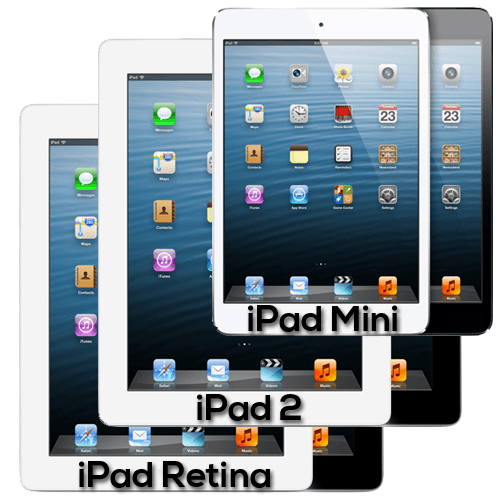
Tecumseh Vista Academy Extends Math iPad Project with 20 New iPad Minis

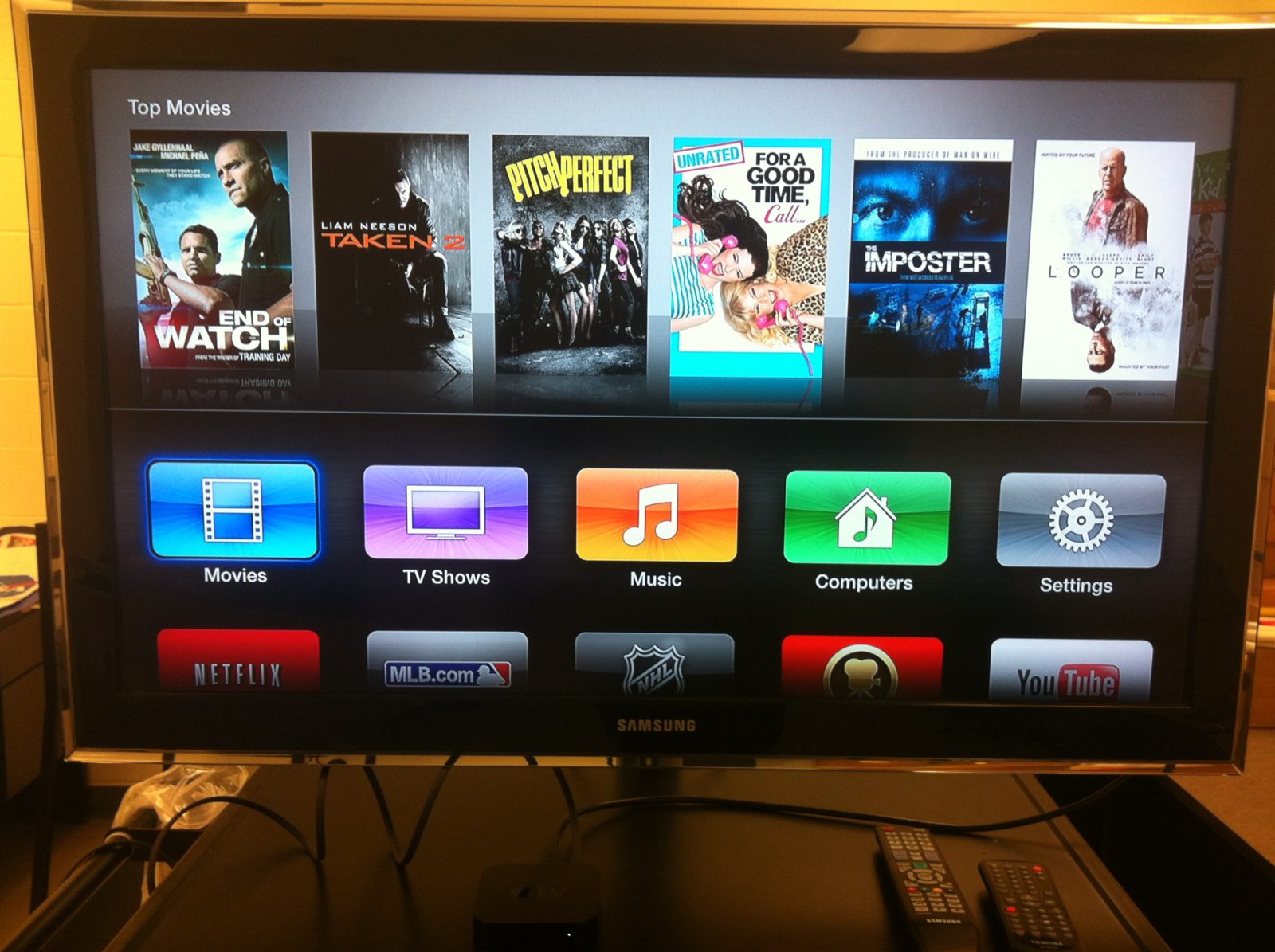
It has been approximately 18 months since our first set of 30 Apple iPads were ordered and delivered to Tecumseh Vista Academy through funding I received from the Ontario Ministry of Education Teacher Learning and Leadership (TLLP) Program and I’m happy to say we have come a long way. Being the only math teacher for our grade 9 students, it was exciting to have the opportunity to include all students in our 1:1 iPad Classroom. What started as a simple conversion from a TIPS4RM style three-part lesson on paper to a digital format, we have since incorporated other great tools such as iPad Mirroring via Apple TV and AirPlay, recording video in apps like Explain Everything to allow students to communicate their understanding, utilize the great features of Google Drive Forms and incorporate interactive math learning through apps like DragonBox, Algebra Touch and Khan Academy practice exercises.

High Level of Success in Mathematics – Could It Be the iPad Technology?

After achieving a high level of success both in credit accumulation and our grade 9 EQAO standardized testing scores, our administration at Tecumseh Vista Academy has invested in 20 iPad Mini devices to extend the project into our grade 10 classrooms.

Tecumseh Vista Academy Applied Mathematics EQAO 2011-12

We have been noticing that more and more students have been bringing their own iPads to school and thus the decision was made to purchase 20 iPad Minis instead of 30 with the anticipation that enough students would fall into the Bring Your Own Device (BYOD) category to make it work.

Out of the Box – iPad Mini Packaging

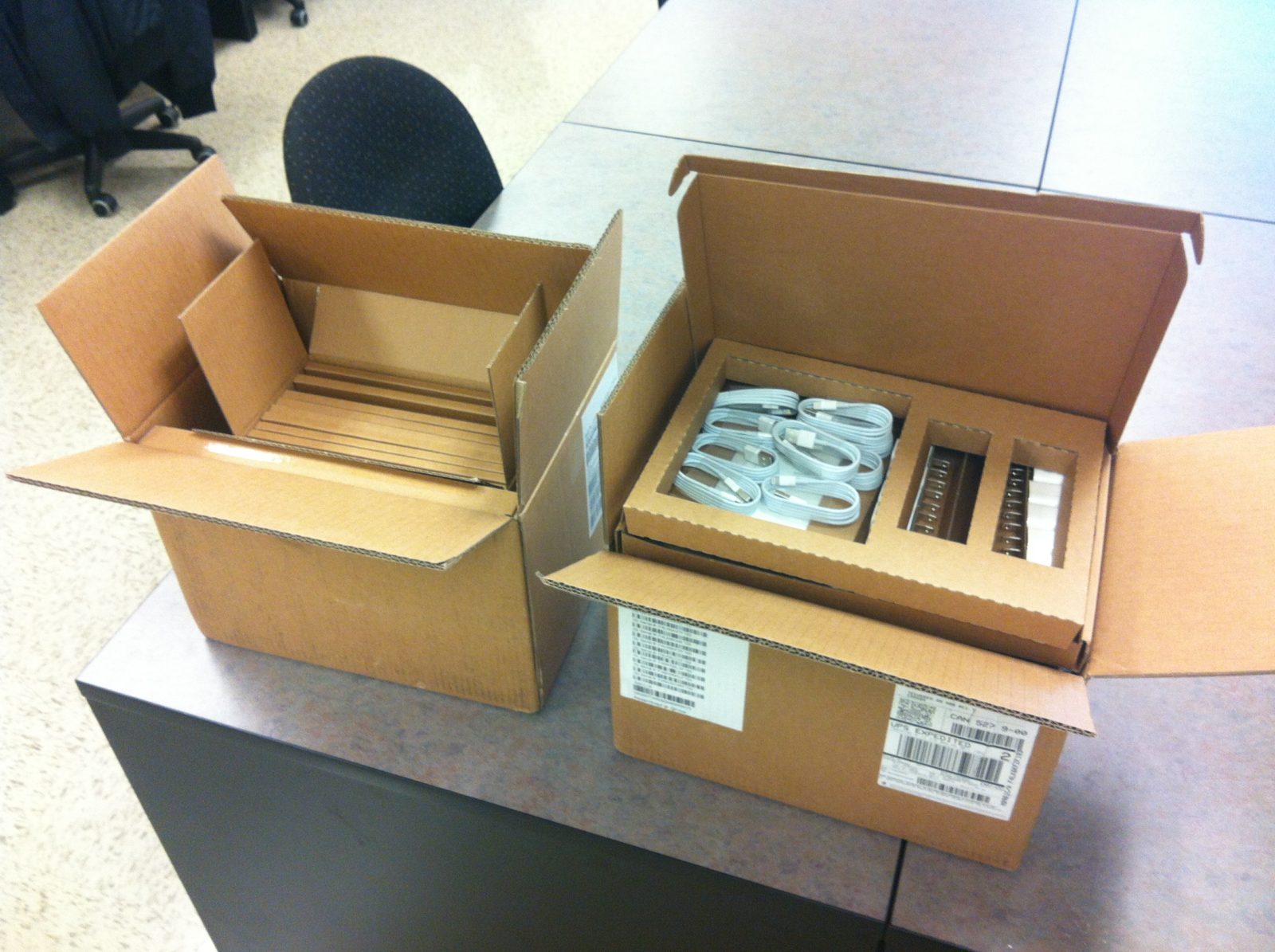
For educational institutions, it is wise to purchase your iPads in 10-packs as they are discounted $20 each. Each 10-pack of iPad Minis will contain 10 individually wrapped iPad Mini devices as well as 10 sets of USB charge cables and wall adaptors.

How to Setup iPad | The iPad Classroom Deployment Guide

Each individual iPad Mini is packed in a very minimal amount of cardboard.

How to Setup iPad | The iPad Classroom Deployment Guide

iPad Mini Setup Procedure

If you have ever purchased an iOS product such as iPad, iPad Mini, iPhone or iPod Touch in the past, you’ll know that Apple makes it very easy to get yourself up and running in a matter of minutes. When purchasing a large quantity of iPads for a school or other institution, the deployment process can be much more difficult.

How to Setup iPad | The iPad Classroom Deployment Guide

Powering On Your iPad Mini for the First Time

Your iPad Mini devices should have been shipped fully charged and will likely have close to 85% to 95% battery life remaining. Some would suggest plugging in the devices to ensure they are fully charged before powering them on, but you’ll notice that plugging the device into the wall will in fact power them on.

How to Setup iPad Initially – Follow On-Screen Steps

The initial setup process is very easy. Follow on-screen prompts to select the following:

  • Choose Your Language
  • Select Your Country
  • Enable Location Services (GPS Capability)
  • Create/Sign-in With an iTunes Apple ID
  • Accept Terms and Agreement
  • Enable iCloud Syncing
  • Enable Siri Capabilities

This slideshow requires JavaScript.

The Difficult Part – Installing Apps on Your Class Set of iPads

Unless you plan to select/deselect apps in iTunes for each of your class set of iPad Minis, your other options are Apple Configurator or iPhone Configuration Utility for Mac OS or Windows.

How to Setup iPad with Apple Configuration Utility

Apple Configuration Utility makes setting up multiple iPads relatively quick and easy. With the ability to automatically name your devices sequentially, such as TVA Mini 1, TVA Mini 2, etc., the option to enable supervision and restrictions through configuration profiles that are relatively easy to create, the app is definitely worth exploring. Apple Configurator allows you to disable the Messages app as well as Facetime, while iPhone Configuration Utility does not.

Setup iPad With Apple Configurator

Apple Configurator would be the clear winner to make the iPad setup process much easier, but the app requires you to import redemption codes for each device an app will be installed to. I don’t believe that this system has been setup for Canada as of yet and thus I resorted to iPhone Configuration Utility.

Setup iPad with Apple Configurator

How to Setup iPad with iPhone Configuration Utility

How to Setup iPad With iPhone Configuration Utility

iPhone Configuration Utility is an older version of Apple Configurator and offers many of the same features. I have used iPhone Configuration Utility to setup my class set of iPad 2 devices back in October of 2011 and after not knowing how to handle redemption codes required for the new Apple Configurator, I decided to use it again for our new iPad Minis. The process is not as easy as Apple Configurator, as you cannot automatically name the devices or install a pre-selected list of apps. You can still create iPad configuration profiles like Apple Configurator that allow you to save WiFi passwords, restrict iPad from certain features such as the App Store or iTunes, you can automatically configure calendars, mail accounts, create webclips and much more. However, installing apps requires you to manually click “install” on each desired app.

How to Setup iPad With iPhone Configuration Utility

How to Setup iPad With iPhone Configuration Utility

Where to Charge and How to Sync Your iPad Minis?

Our first set of iPad 2 devices reside in the Bretford Powersync cart. It is a great iPad storage and sync cart, but it does cost a great deal of money. At approximately $2,500 I wonder if we will be able to avoid purchasing another cart, but still maintain the security and easy syncing capabilities. Currently, I have been considering rigging up a classroom cabinet as an iPad storage closet. Running power and some iPad Mini adaptors will likely do the trick, but will the hassle of rigging this charge station be worth the while? How will I have to resort to syncing the iPads wirelessly? Time will tell.

I’d love to hear your iPad deployment experiences in the comment section below…

Kyle Pearce

About Kyle Pearce

Secondary Math Teacher and Intermediate Math Coach with the Greater Essex County District School Board leading a Ministry funded 1:1 iPad project called Tap Into Teen Minds. I currently teach at Tecumseh Vista Academy K-12 in the morning and focus on duties for the Middle Years Collaborative Inquiry (MYCI) Project in the afternoon.

Apple iPad Deployment Backgrounds

Number Your Class Set of iPads For Easy Organization

The following Apple iPad Backgrounds were created to make deployment of your class set(s) of iPads quick and easy. Rather than label the actual device, the following backgrounds will allow you to keep track of which iPad is which by saving these images as your background for your iOS lock screen and springboard.

Organize Your Classroom iPads With Numbered Backgrounds

When I purchased and deployed my first class set of iPads for my TLLP project, I wanted an easy way to keep track of what iPad each student was using without engraving, writing or sticking anything to the actual iPad device. The best option was to create numbered backgrounds for the iPad to quickly know what iPad I was working with or assigning to a student.

Students Can Create Numbered Backgrounds for iPad

While I keep my iPad numbered backgrounds up on my website to ensure I have a numbering option for organization purposes, I have found that students enjoy finding their own backgrounds to customize their iPad. At first, I would discourage students from doing this and ask them to change the backgrounds to the original numbered images I had provided. I realized that students could quickly and easily add their iPad number to the image they select from the web using an image editing app. A really quick suggestion would be a free app such as Skitch by Evernote. Kids enjoy doing it and taking ownership of their own iPad.

Do you have any other unique iPad classroom organization strategies that you’d like to share with other teachers like myself? I’d love to hear about it in the comments section below!

Mac OS Upgrade Mountain Lion – A Classroom Must!

Mac OS X Mountain Lion Provides Great Improvements

iTunes, App Store, iBookstore, and Mac App StoreWhile the brand new Apple Mac OS upgrade to Lion called Mountain Lion provides more than 200 features, I purchased the new Mac OS upgrade the day it was released to allow my MacBook Pro to catch up to all of the great features I already enjoy on my iPhone 4. Notifications, Reminders, Built-in Sharing, and Screen Mirroring with Apple TV were the huge selling features for me. Maybe you’ll be sold when you see some of these great features which will make teaching so much easier and organized!

Mac OS X Mountain Lion Notification Features

Apple Mac OS X Mountain Lion Upgrade Notification Centre

One of the best Mac OS Upgrades featured in Mountain Lion is the notifications and notification centre. Mac OS Upgrade Mountain Lion - Reminders App & NotificationsIn the top right corner of your Mountain Lion Mac OS X Upgrade, you’ll notice an icon with three dots and three lines. Clicking on this will open your Notification Centre which shows you your Tweets, new emails, reminders, calendar events, and even allows you to post Tweets to all of your Twitter accounts!


iTunes, App Store, iBookstore, and Mac App Store

Mac OS X Mountain Lion Now Has Reminders App

One of the simple features which I am geeked about is the addition of the Reminders App. I use Reminders on my iPhone 4 constantly to keep my daily tasks and lists organized from home, work, and play. My iPhone Reminders are now synced on my laptop through iCloud and I no longer need to worry about which device I’m using when I want to input a new entry!

Notes Are Pushed to All Your Devices With Mac OS X Mountain Lion

iTunes, App Store, iBookstore, and Mac App StorePrior to the Mountain Lion update, I always felt that the Notes app on my iPhone was pretty useless. Now with iCloud syncing notes from your MacBook Pro to your iPhone makes the app much more beneficial. I am now constantly jotting down notes from presentations, interviews with parents, and much more with access to them from anywhere! Easy to manage and file away if you feel the information is deemed a long-term keeper. Double-click to pin a note to your desktop for easy-access!

Mountain Lion Built-In Sharing

From almost any app, you can now share on Facebook, Twitter, Email, Messages, and more! With a single sign-in, staying social was never easier on any device than with Mac OS X Mountain Lion! Once you’ve finished downloading your upgrade, come back to my page and tweet it to the world!

Apple TV Screen Mirroring to Your TV or Projector

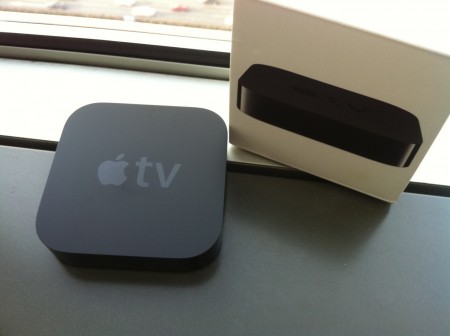
Using Apple TV (ATV), you can now easily mirror your screen to a TV or LCD Projector in the classroom. Eliminate cords from your computer to the projector in your presentation and instantly become able to present from anywhere in your class! Why not bring your MacBook Pro to the front of the room and instruct from there? Bring it to a group of students to allow them to use the computer and display their work to the rest of the class. Just as Apple TV allows iPads to be mirrored to the screen for all to see, your class set of MacBooks or iMacs can now do the same. Think of how great it would be if students in a computer lab or iPad lab could share their work instantly with the rest of the group? Collaboration at its’ finest!


iTunes, App Store, iBookstore, and Mac App Store

Kyle Pearce

About Kyle Pearce

Secondary Math Teacher and Intermediate Math Coach with the Greater Essex County District School Board leading a Ministry funded 1:1 iPad project called Tap Into Teen Minds. I currently teach at Tecumseh Vista Academy K-12 in the morning and focus on duties for the Middle Years Collaborative Inquiry (MYCI) Project in the afternoon.

iPad Stylus for iPad Classroom | Necessity or Luxury?

Entering the last month of the school year, I have been reflecting on the great experience that my Teacher Learning and Leadership Program project has given me. Many of the assumptions I made early on have proven to be incorrect, as one would expect. The biggest misconception I believe I had was how necessary stylus pens are when using the iPad for a writing tool on a daily basis.

iPad Stylus: Increase in Price = Increase in Quality?

As my budget for technology quickly dwindled after purchasing cases and covers for the iPads, I purchased cheap sets of iPad stylus pens; some from eBay, some from a website out of China. Now the price of these pens were in the one dollar range and within a couple weeks, most were broken and worn out.

Should I Pay More for Stylus Quality?

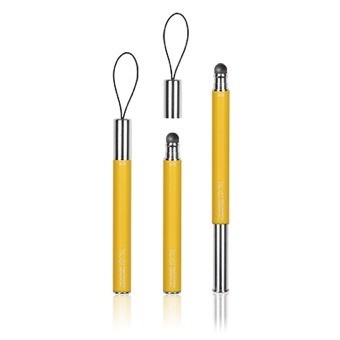
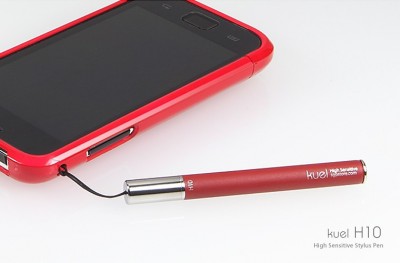
A colleague of mine, Craig Guthrie, found some nice iPad stylus pens which felt great in your hand and wrote very smoothly on the iPad. They were the Kuel H10 stylus pens by Spigen which you could purchase from Amazon online for $12.99 each. A huge price jump from the cheap dollar pens I had been experimenting with. I decided to purchase a class set, because in the long run, hopefully they would last longer than the cheap pens which had a short lifespan.

H10 Series by Kuel | Spigen | Tap Into Teen Minds

Photo from the Spigen H10 Series webpage

Out of the Box – Kids Loved Them!

During the first two weeks, kids raved about the new Kuel H10 iPad stylus pens. They had a nice weight and feel to them and they allowed students to write very clearly on the iPads.

After about three weeks, a student came to me showing the tip of their stylus pen and how it had ripped. I was disappointed, but chalked it up to a student being a little careless or simply a lemon in the set of stylus pens. But as time went on, into the fourth week, more and more students were showing me their pens and their little defects.

H10 Series by Spigen | iPad Stylus | Tap Into Teen Minds

Photo from the Spigen H10 website

Even High Quality Stylus Pens Can’t Endure the Long Days

By the end of the first month and about half of the stylus pens unusable, I decided to ship the whole lot back for a refund and Spigen customer service was great. With a 30-day, money-back guarantee, they offered to replace the iPad stylus pens or offer a refund.

Don’t Take It Out on Spigen

While I would still recommend that iPad users purchase the Kuel H10 iPad stylus for themselves, I would shy teachers and administrators away from purchasing class sets of stylus pens from any company. At the current time, I don’t think that there is a stylus pen out there that can withstand the rigors of being used by multiple students all-day, everyday. I would love for a company to prove me wrong with my claim, so if you feel your company has a stylus pen which is up to the task, contact me by leaving a comment below and I can get you my shipping information.

The refund was no hassle and Spigen was easy to work with. I have nothing but good things to say about how they handled the situation and hope that sometime soon, they develop a tougher stylus which can stand up to day in and day out of student use.

What is the iPad Stylus Solution for an iPad Classroom?

Fingers! As @StudyHelpSite mentioned in a Tweet just now, Steve Jobs thought stylus pens shouldn’t be used on an iPad and to this day, Apple will not sell them! The vast majority of my students write with their fingers and get by just fine. One less thing to carry to math class!

If students wish to use a stylus, I have encouraged them to purchase their own stylus and take measures to take care of it. Many of my students asked me to purchase the Kuel h10 for themselves and are still using them today. I believe that if a stylus pen is purchased for an individual student, they may take better measures to keep it in good shape. Soon enough, an iPad and stylus will be a course requirement in many classrooms. Why not start now?

Try These Highly Regarded Stylus Pens

If you’re currently using an iPad stylus pen that you really enjoy using, I’d love to hear about it below. Shoot us a comment!

Kyle Pearce

About Kyle Pearce

Secondary Math Teacher and Intermediate Math Coach with the Greater Essex County District School Board leading a Ministry funded 1:1 iPad project called Tap Into Teen Minds. I currently teach at Tecumseh Vista Academy K-12 in the morning and focus on duties for the Middle Years Collaborative Inquiry (MYCI) Project in the afternoon.

Searching for the Perfect Fine Tip iPad Stylus Pen

Kosella Aponyo Click & Spigen Kuel H10 iPad Stylus Pens

In a previous post, I discussed my findings regarding iPad stylus pens and their quality. In my experience, I noticed that cheaper iPad stylus pens purchased from eBay and other suppliers out of China for approximately a dollar each would fall apart after a very short time. After some time, I came across some good iPad stylus pen options, I’m starting to believe a fine tip option does not exist.

Kosella Aponyo Click Stylus – A Good Option

On my search for a fine tip iPad stylus pen that would be durable for my Tap Into Teen Minds iPad project, I was contacted by someone at Kosella who shipped me The Aponyo Click stylus by Kosella. It is a fabric tip iPad stylus and offered a very enjoyable stylus writing experience on the capacitative iPad 2 screen. While it was not a “fine tip”, it did however allow me to write without much effort and I used it for approximately 6 months teaching directly from my iPad and Splashtop 2 Remote Desktop. I would definitely recommend this stylus as an option since it was very durable, but the thicker tip does not provide the fine tip writing that many search for in an iPad stylus.

Rubber Tip iPad Stylus: Spigen SGP Kuel H10

Spigen SGP Kuel H10 Fine Tip iPad Stylus Pen

After an elementary colleague, Craig Guthrie, had purchased a few of the Spigen SGP Kuel H10 iPad stylus pens, I asked him to order me one as well. Much like the Kosella Aponyo Click stylus, the Spigen SGP Kuel H10 had a price tag of $12.99 through Amazon. Although this was much more expensive than the previous class sets of stylus pens I had purchased in the past, the writing experience was excellent. The weight of the pen felt like quality and the rubber tip allowed for more detail when writing.


Spigen SGP Kuel H10 iPad Stylus – Students Love the Feel

Like the Aponyo Click iPad stylus I had been using to present my lessons via the iPad, the Kuel H10 stylus pens had a great feel. The tips were rubber and not fine tipped like most would like, but they felt smooth on the iPad screen – even with a plastic screen protector on the tablets. After ordering a class set of Spigen SGP Kuel H10 iPad stylus pens for use in my mathematics classroom, my students instantly raved about how great the pens were. Students actually wanted to order their own so I arranged to order 15 more through Amazon to save students on shipping them individually.

Spigen SGP Kuel H10 – Great Feel, But Can’t Handle 6 Hours a Day

Having 75 students trek through my classroom on a daily basis to use the iPads and Spigen SGP Kuel H10 stylus pens, it wasn’t long before some of the rubber tips began to develop small holes or rips. Some of the pens even began to have other issues, like the extension which allows for the pen to be made another inch longer would fall out.

Spigen SGP Kuel H10 iPad Stylus Pen | Fine Tip Stylus | Fine Point

It became clear that a rubber tip iPad stylus pen would not be able to take the daily abuse required for a mathematics classroom with so many different people using them each day. After contacting Spigen SGP about the Kuel H10 stylus pens developing holes or rips, they immediately offered to exchange or refund the cost of the pens due to the defects. They stated that these rips were not characteristic of their stylus pens and they would look into the manufacturing process to determine if there was some sort of issue with these particular pens.

The students who ordered their own Kuel H10 stylus pens are still raving about them and have not had any issues with holes or rips. I am convinced that iPad stylus pens are just an item which should not be ordered for an entire class, but rather ordered for each individual student to take care of.

Verdict: Both the Kosella Aponyo Click & Spigen SGP Kuel H10 Get The Job Done!

While I’ve learned that ordering a class set of any iPad stylus pen is not a great idea, I do still have my own Kosella Aponyo Click and Spigen SGP Kuel H10 iPad stylus pens which are used on a daily basis and allow me to write effortlessly on my iPad 2.

Where Can I Get A Fine Tip iPad Stylus Pen?

They don’t exist! I’ve learned through research that since the iPad has a capacitative screen, the screen requires a certain amount of surface area making contact with the screen to detect a “touch.” Fine tipped stylus pens would not work on the screen since there would only be one point of contact with the screen. This is why you see so many iPad stylus pens with rubber tips and why there are so few fine tipped stylus pens.

BEWARE: I found a fine tip iPad stylus and ordered a class set, but they did not work due to the capacitative iPad screen. The lack of surface area on the stylus made the pen effectively useless.

Have an iPad stylus that you’d like to suggest to our readers? Comment below!

Kyle Pearce

About Kyle Pearce

Secondary Math Teacher and Intermediate Math Coach with the Greater Essex County District School Board leading a Ministry funded 1:1 iPad project called Tap Into Teen Minds. I currently teach at Tecumseh Vista Academy K-12 in the morning and focus on duties for the Middle Years Collaborative Inquiry (MYCI) Project in the afternoon.